

How do I pre-fill product selections?
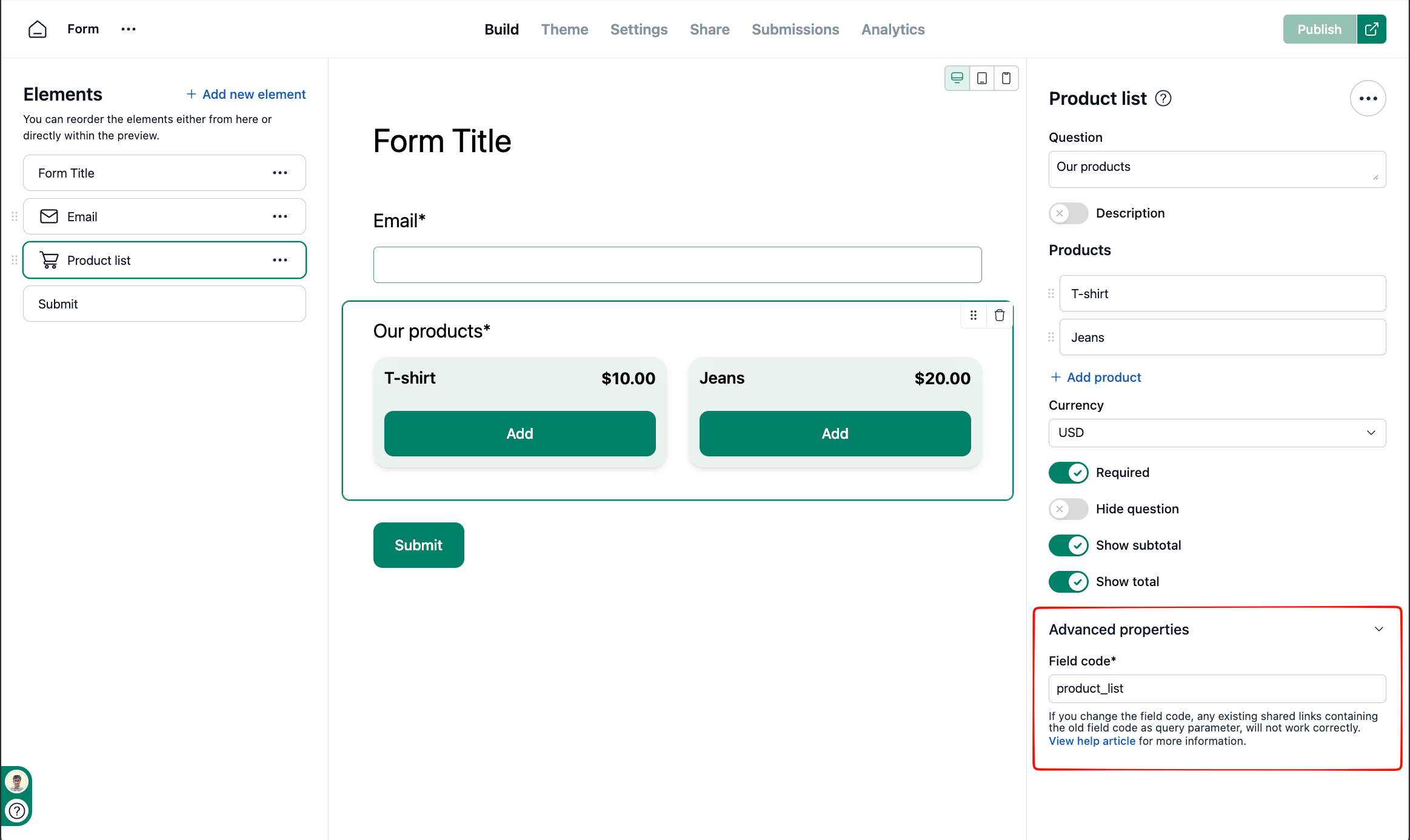
For pre-filling the product list field via URL parameters, the field code can be found under the Advanced properties.
The field code can be used along with product names, quantity, and option names in URL parameters.
For example, if the field code is products_list, you can pre-fill selected products as shown below:
https://example.neetoform.com/2106a783ee6fa285bc3e?product_list.selected_products=T-shirt,Jeans
Here, we are pre-filling the product list field by selecting T-shirt and Jeans.
Finding the Field code
Every Product list field has a unique Field code. This is the key you use in the URL parameters. To find it:
Open your form in the Build tab.
Click the Product list element to open its properties on the right.
Scroll down and expand the Advanced properties section.
Copy the value shown in the Field code input.
How do I pre-fill product quantity?
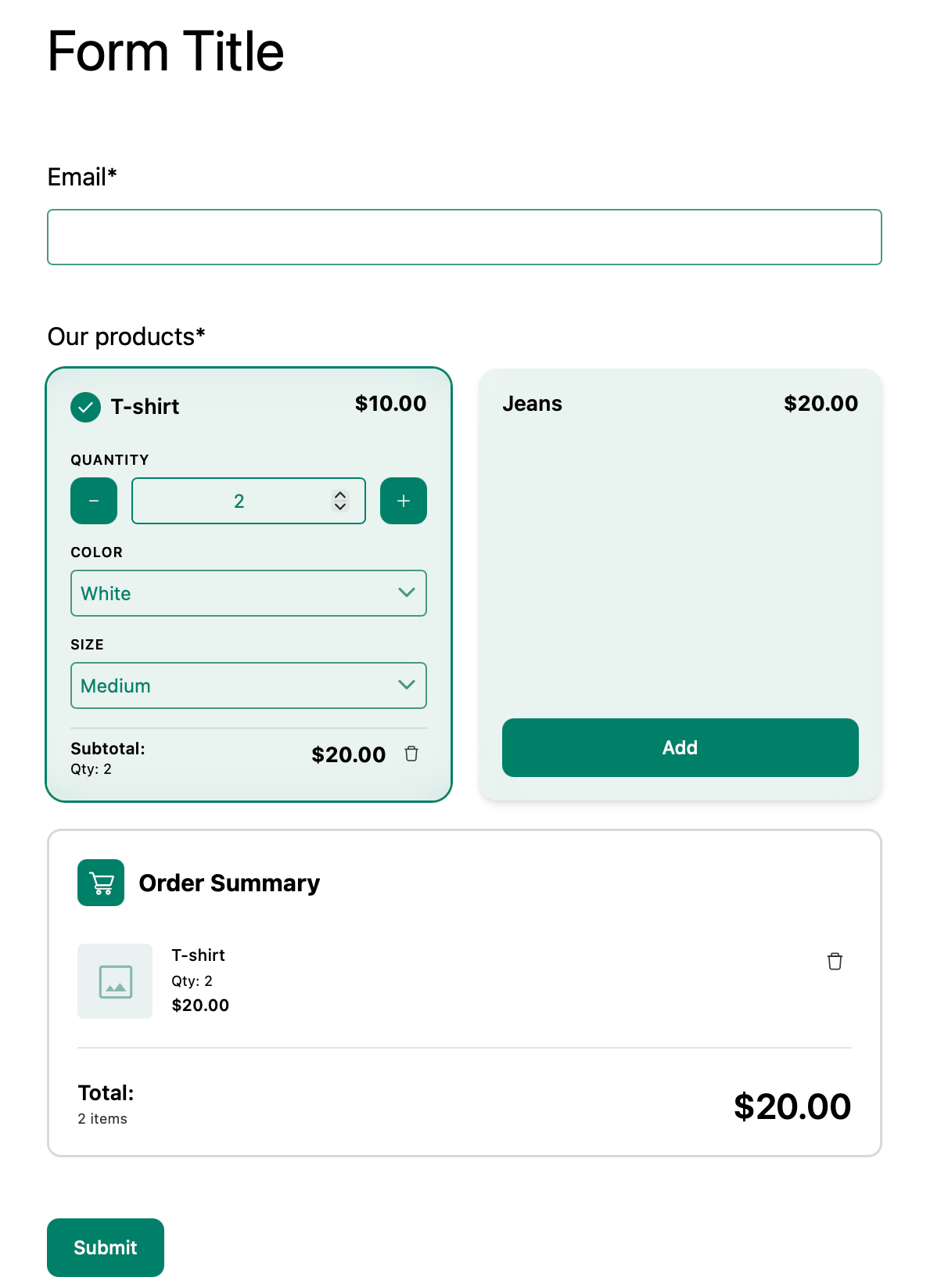
To pre-fill the quantity for a selected product, use the product name along with quantity.
Here, we are selecting T-shirt and setting the quantity to 2.
How do I pre-fill product options?
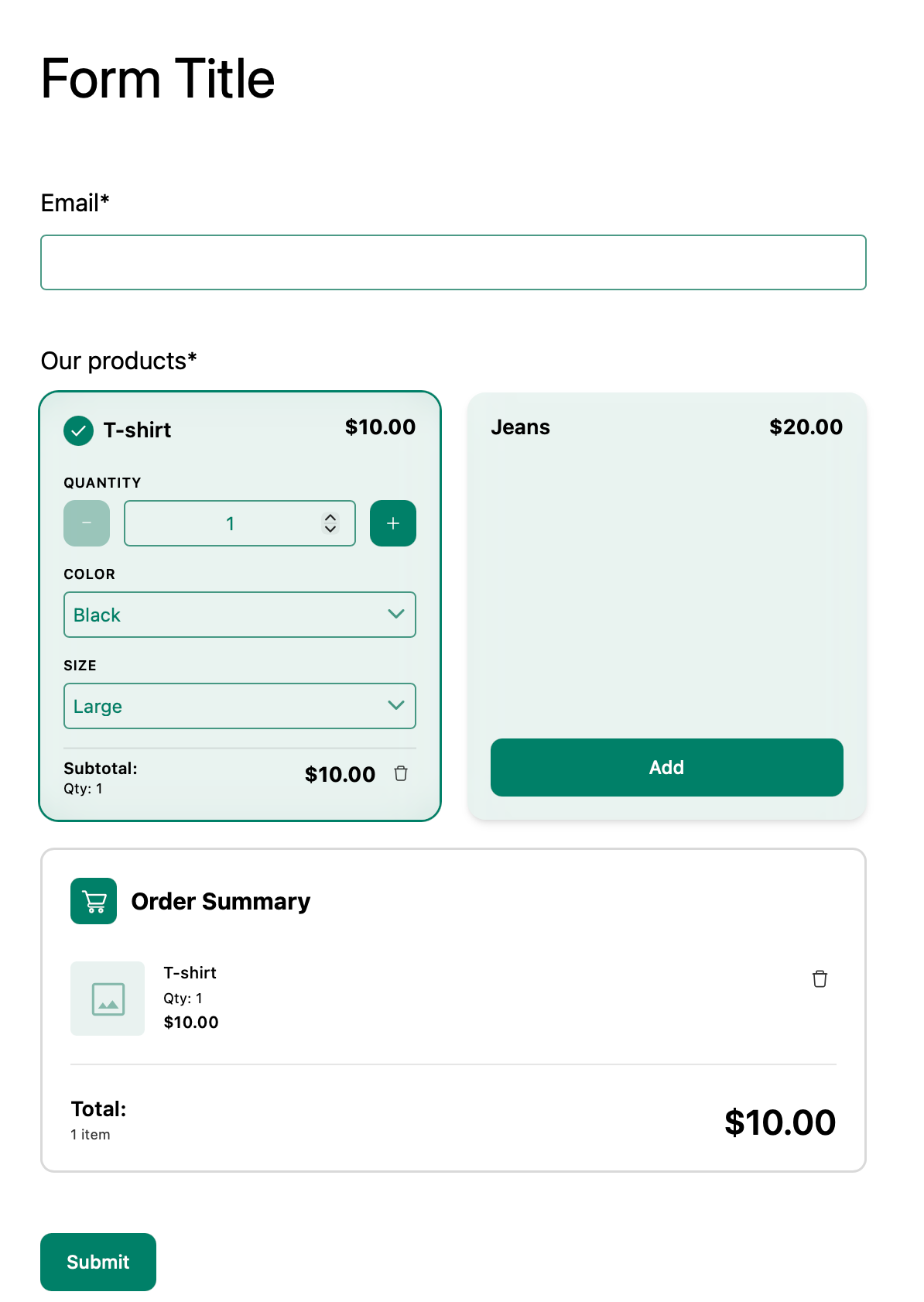
To pre-fill product options, use the product name and the option name in the URL parameter.
https://example.neetoform.com/2106a783ee6fa285bc3e?product_list.selected_products=T-shirt&product_list.T-shirt.Color=Black&product_list.T-shirt.Size=Large
Here, we are selecting T-shirt and pre-filling Color as Black and Size as Large.
How do I pre-fill selected products, quantity, and options together?
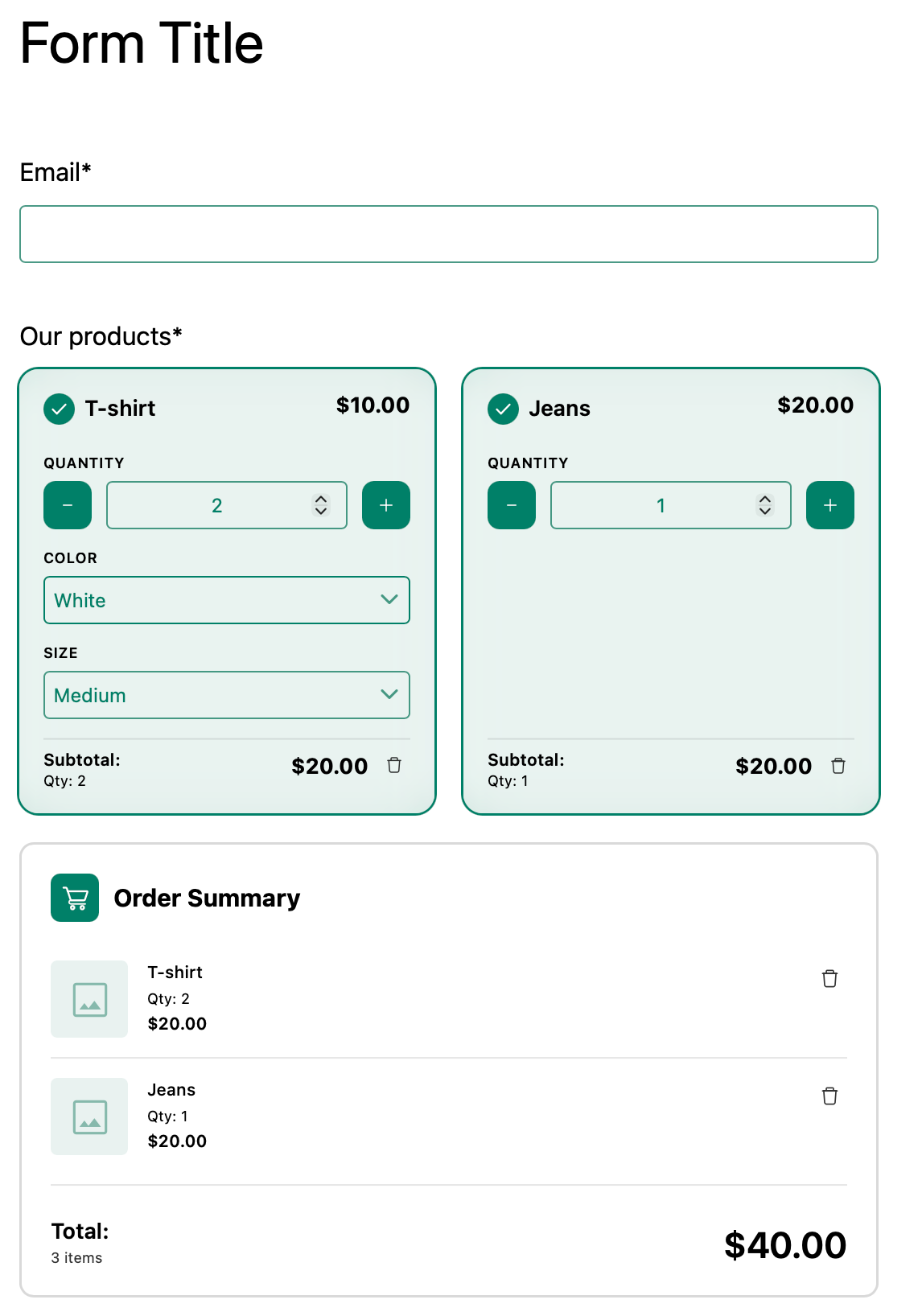
You can combine selected products, quantity, and options in the same URL.
https://example.neetoform.com/2106a783ee6fa285bc3ehttps://form-example.neetoform.com/6a31e099b9bd5ada3141?product_list.selected_products=T-shirt,Jeans&product_list.T-shirt.quantity=2&product_list.T-shirt.Color=White&product_list.T-shirt.Size=Medium&product_list.Jeans.quantity=1
Here, we are:
Selecting T-shirt and Jeans.
Setting the quantity of T-shirt to 2.
Setting the Color of T-shirt to White.
Setting the Size of T-shirt to Medium.
Setting the quantity of Jeans to 1.
URL parameter format
Use the following format for product list URL parameters:
Selecting products:
field_code.selected_products=Product 1,Product 2Setting quantity:
field_code.Product name.quantity=2Selecting options:
field_code.Product name.Option name=Option value
If the product name, option name, or option value has spaces, the browser will encode them in the URL. For example, Cotton Shirt can appear as Cotton%20Shirt.
Make sure the product names, option names, and option values in the URL match the labels in the form.
How do I pre-fill product selections?
For pre-filling the product list field via URL parameters, the field code can be found under the Advanced properties.
The field code can be used along with product names, quantity, and option names in URL parameters.
For example, if the field code is products_list, you can pre-fill selected products as shown below:
https://example.neetoform.com/2106a783ee6fa285bc3e?product_list.selected_products=T-shirt,Jeans
Here, we are pre-filling the product list field by selecting T-shirt and Jeans.
Finding the Field code
Every Product list field has a unique Field code. This is the key you use in the URL parameters. To find it:
Open your form in the Build tab.
Click the Product list element to open its properties on the right.
Scroll down and expand the Advanced properties section.
Copy the value shown in the Field code input.
How do I pre-fill product quantity?
To pre-fill the quantity for a selected product, use the product name along with quantity.
Here, we are selecting T-shirt and setting the quantity to 2.
How do I pre-fill product options?
To pre-fill product options, use the product name and the option name in the URL parameter.
https://example.neetoform.com/2106a783ee6fa285bc3e?product_list.selected_products=T-shirt&product_list.T-shirt.Color=Black&product_list.T-shirt.Size=Large
Here, we are selecting T-shirt and pre-filling Color as Black and Size as Large.
How do I pre-fill selected products, quantity, and options together?
You can combine selected products, quantity, and options in the same URL.
https://example.neetoform.com/2106a783ee6fa285bc3e?product_list.selected_products=T-shirt,Jeans&product_list.T-shirt.quantity=2&product_list.T-shirt.Color=White&product_list.T-shirt.Size=Medium&product_list.Jeans.quantity=1
Here, we are:
Selecting T-shirt and Jeans.
Setting the quantity of T-shirt to 2.
Setting the Color of T-shirt to White.
Setting the Size of T-shirt to Medium.
Setting the quantity of Jeans to 1.
URL parameter format
Use the following format for product list URL parameters:
Selecting products:
field_code.selected_products=Product 1,Product 2Setting quantity:
field_code.Product name.quantity=2Selecting options:
field_code.Product name.Option name=Option value
If the product name, option name, or option value has spaces, the browser will encode them in the URL. For example, Cotton Shirt can appear as Cotton%20Shirt.
Make sure the product names, option names, and option values in the URL match the labels in the form.