

PDF documents let you generate a formatted PDF for every form submission. Upload your own PDF template, place form answers (including signatures) where you want them, and NeetoForm will fill in a new copy for each submission.
This is useful when a plain-text email isn't enough, and you need a branded document, such as an onboarding form, signed agreement, or contract. You can also attach the generated PDF to the emails sent to the submitter and your team.
Upload a PDF template
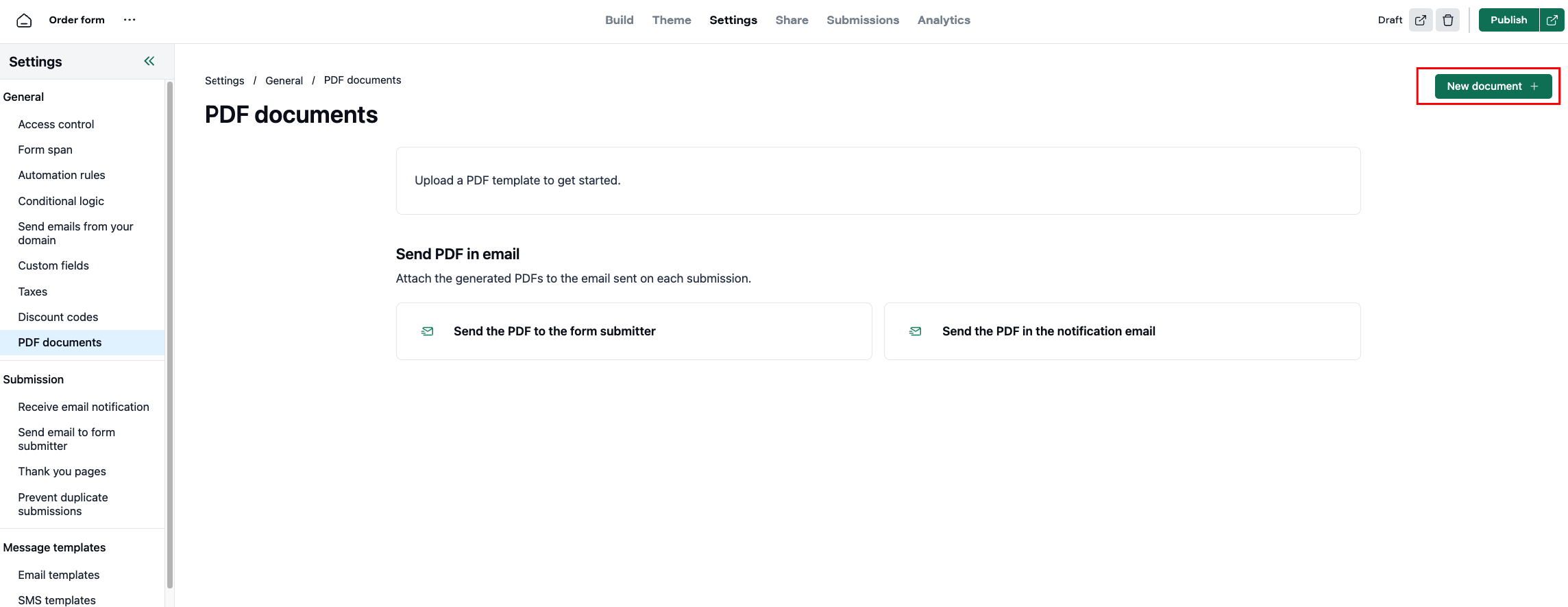
Open your form and go to Settings > PDF documents.
Click New document and upload your PDF template.
-
Once uploaded, it appears on the PDF documents page. From the document menu, you can Rename, Update PDF, Clone, or Delete it at any time.
Map form answers to the PDF
On the document card, click Edit.
In the Form fields panel, choose the field you want to place. Switch between the Answers and System tabs to access form responses and system values such as Form name, Submission ID, and Submission date.
Drag a field onto the PDF, or select it and click Add to document.
Drag the field to position it where you want.
Select a placed field to customize its font, size, color, alignment, and text behavior (Wrap & clip or Shrink to fit). Signature fields are added as images, so you can resize them instead of changing text styles.
Use Preview with data to see the PDF filled with an actual submission, or click Download PDF to review the generated document.
Click Save when you're done.
Attach the PDF to email notifications
You can attach the generated PDF to the emails NeetoForm already sends. Choose where you'd like the PDF to be included.
Send the PDF to the form submitter
Go to Settings > Send email to form submitter.
In the Attachments section, select the PDF document.
Click Save changes.
Send the PDF to yourself or your team
Go to Settings > Receive email notification.
In the Attachments section, select the PDF document.
Click Save changes.
From then on, every new submission will generate the PDF automatically and attach it to the emails you've selected.