

NeetoForm forms can show all questions on one page or one question at a time. With One question at a time, each question gets its own screen, and respondents move through the form using the Previous and Next buttons.
To see what a One question at a time form looks like, open this example customer feedback survey.
You choose the layout when you create a form, and you can't change it later. If you'd rather show several questions on each page, choose All questions and split the form using page breaks.
If you've already built a form using the All questions layout and want to show one question at a time, you don't need to start over. Add a page break after each question to give each question its own page.
Creating a form that shows one question at a time
Click Add new form.
Click Start from scratch.
When asked how you'd like to show your questions, select One question at a time.
NeetoForm creates the form and opens it in the builder. The selected layout appears as a small badge next to the form name at the top of the page.
The layout choice is available only when you start from scratch. Forms created from a template use the template's layout, and cloned forms keep the original form's layout.
Adding questions
In the builder, questions appear in the order respondents will see them, each on its own card.
Click Add new element.
Select an element to add it as a new card.
To change the order, drag a card to a new position.
Payment elements always appear on the last card. The Captcha element doesn't get a card of its own. Instead, it appears on the last card alongside the Submit button.
Hidden fields, such as Unique ID and Calculated field, also don't get their own cards. You can find them in the elements list on the left and click them to change their settings.
Page break and Divider elements aren't available in this layout.
What respondents see
Respondents see one question at a time. If your form has a welcome screen, it appears first on its own. The Next button moves to the next question, and Previous takes respondents back to the previous question. Their answers are kept when they go back to an earlier question. On the last question, the Submit button appears instead of Next.
Before moving to the next question, NeetoForm checks the answer. If a required question is empty or an answer is invalid, respondents must fix it before continuing.
When respondents submit the form, NeetoForm checks all questions again. If any question still needs an answer, the form goes back to the first one.
Questions hidden by conditional logic are skipped.
To show respondents how much of the form they've completed, add a progress bar. The progress bar counts answered questions, not screens, so it won't be full if a respondent skips an optional question.
Moving to the next question automatically
You can let the form move to the next question as soon as a respondent picks an answer, so they don't have to click Next each time. This setting is off by default.
In the builder, click the Submit element.
Turn on Automatically move to the next question when an answer is selected.
-
Click Publish to apply the change to the live form.
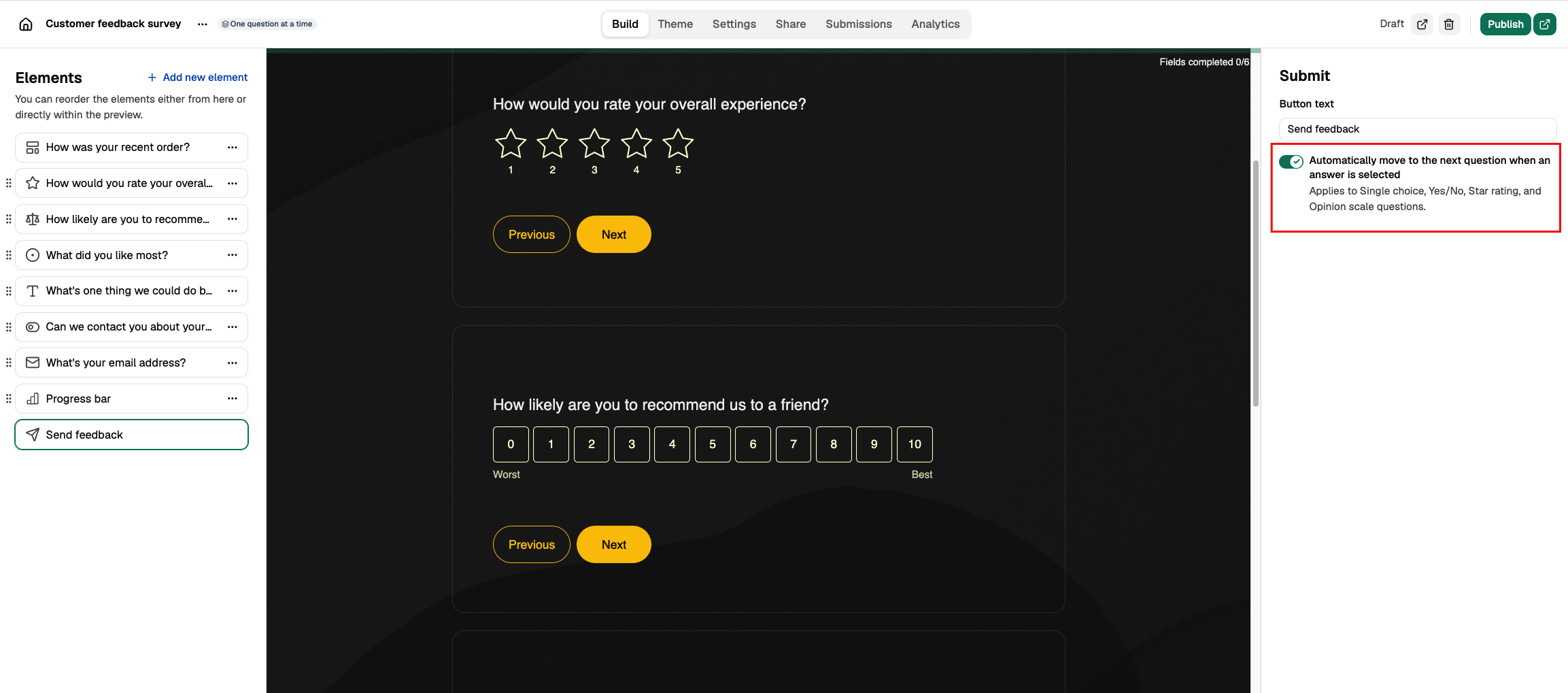
The setting applies to Single choice, Yes/No, Star rating and Opinion scale questions. When a respondent picks an answer in one of these questions, the form waits half a second and then moves to the next question. It checks the answer and applies conditional logic in the same way as the Next button.
The form doesn't move on its own when:
The question is the last one. Respondents still click Submit.
The respondent picks Other, so they can type their answer.
The respondent clears the answer before the half second ends.
The respondent picks the answer using the keyboard. They can press Enter or click Next to continue.
The Previous and Next buttons stay visible, so respondents can still go back or move forward themselves.