
The Google Drive integration connects your form to your Google Drive. Once it is set up, every file someone uploads via your form is automatically saved to Google Drive. You can also save a PDF copy of each submission, so submitter's answers and their uploaded files stay together. Each submission is kept in its own folder, which makes it easy to see who submitted what.
Connecting your Google Drive account
Visit your NeetoForm.
Go to Settings.
Click Google Drive under the Integrations section.
Click Sign in with Google.
-
Choose the Google account you want to use, then allow NeetoForm to access your Google Drive.
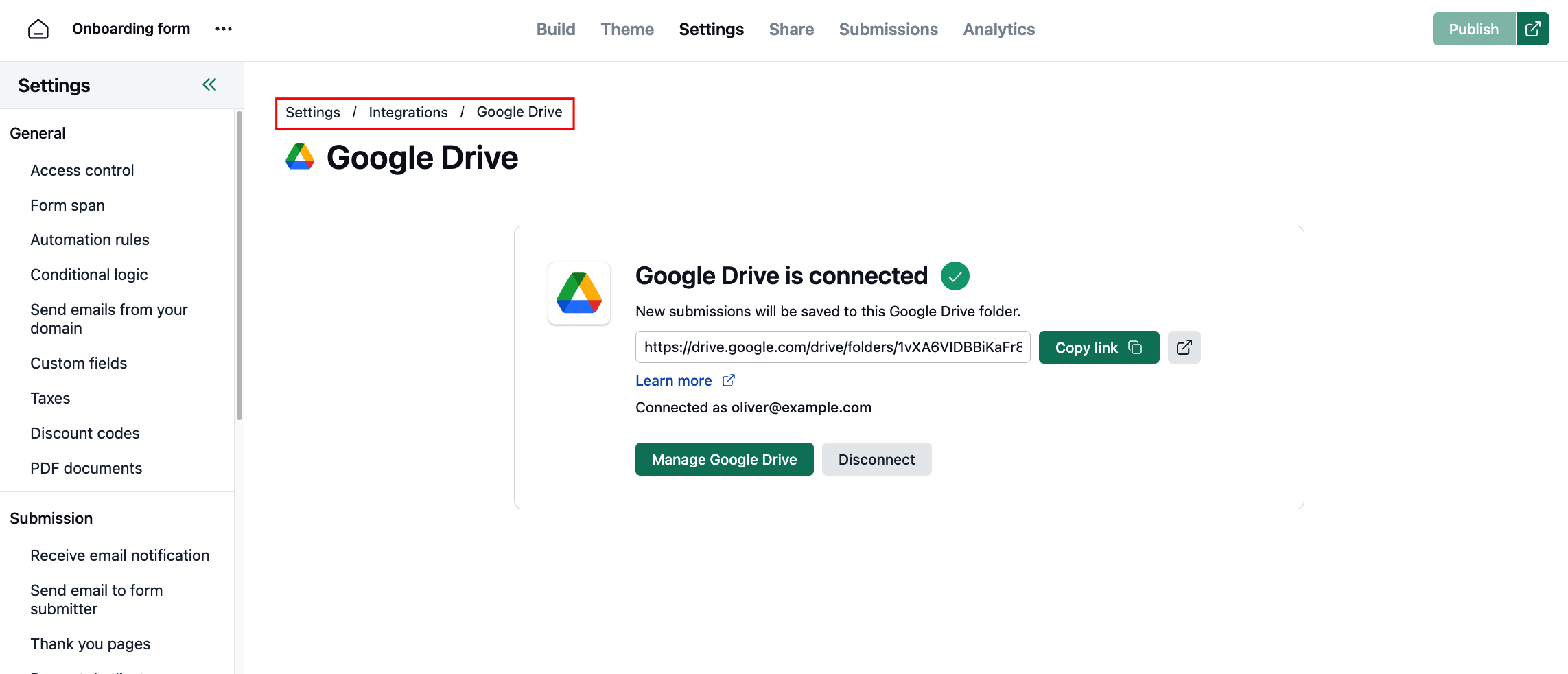
Once connected, the page shows the email you linked and a link to the folder where this form's files are saved.
Managing Google Drive
Click Manage Google Drive.
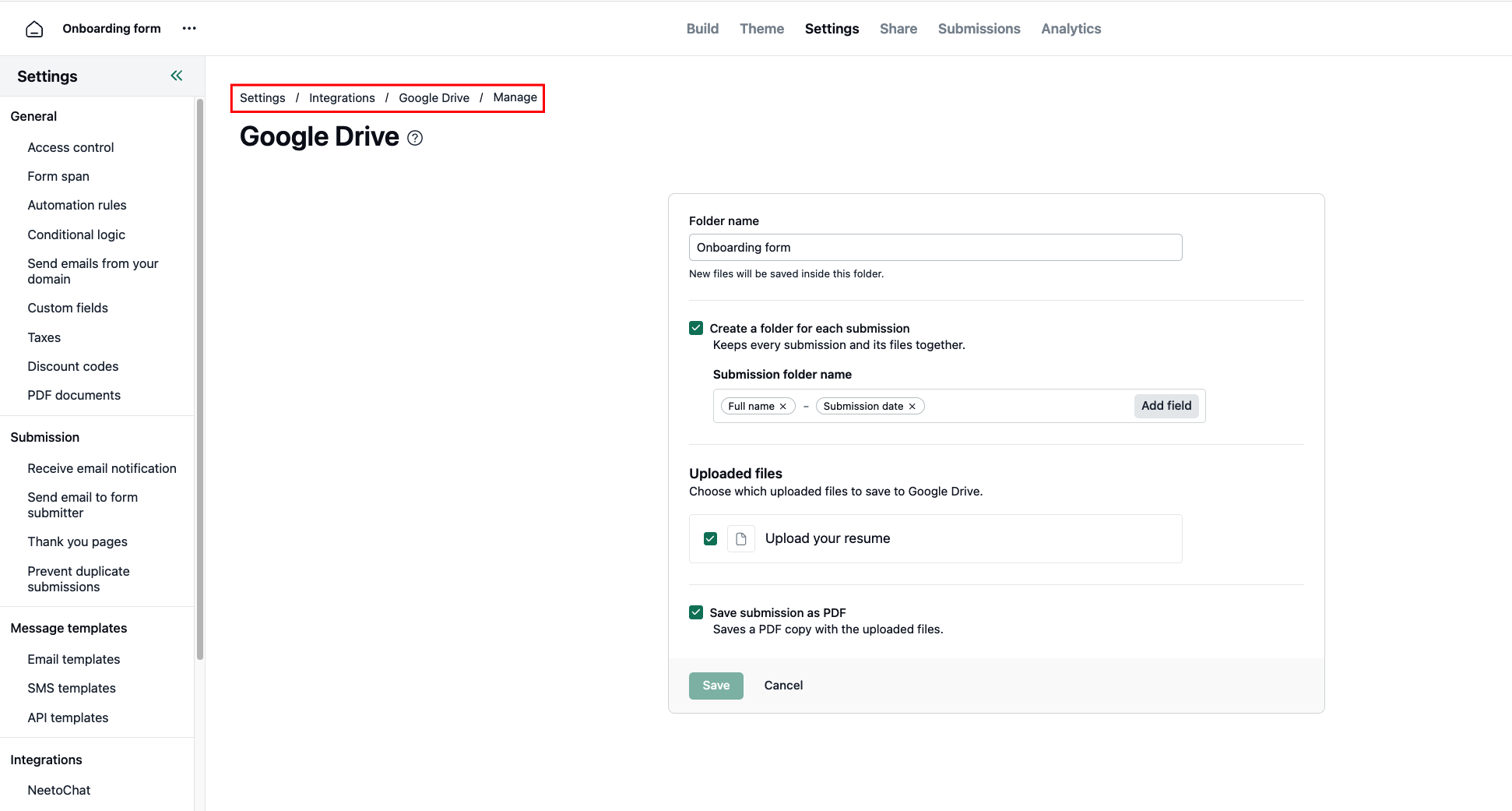
Folder name is the main folder that holds everything from this form. It is filled in with your form's name, so change it only if you want a different name.
Keep Create a folder for each submission checked so every submission is saved in its own folder.
Under Submission folder name, choose the fields that make up each folder's name, such as Name and Submission date. Click Add field to include more, like Email or Submission ID. If you pick Name and Submission date, a submission from Eve Smith on 6 August 2026 is saved in a folder called
Eve Smith - 06 Aug 2026.Under Uploaded files, check the upload fields you want sent to Google Drive. All of them are checked by default.
Keep Save submission as PDF checked to store a PDF copy of each submission with its files.
-
Click Save.