
Overview
This help article explains how to pre-fill a Product list field in your form using URL parameters in NeetoForm. By passing the right parameters in the form's link, you can have specific products pre-selected, set their quantity, and even pick a product option (variant) automatically when the form loads.
This is useful when you want to share a link that already has a customer's order filled in - for example, from a product page, an email campaign, or an invoice.
Finding the Field code
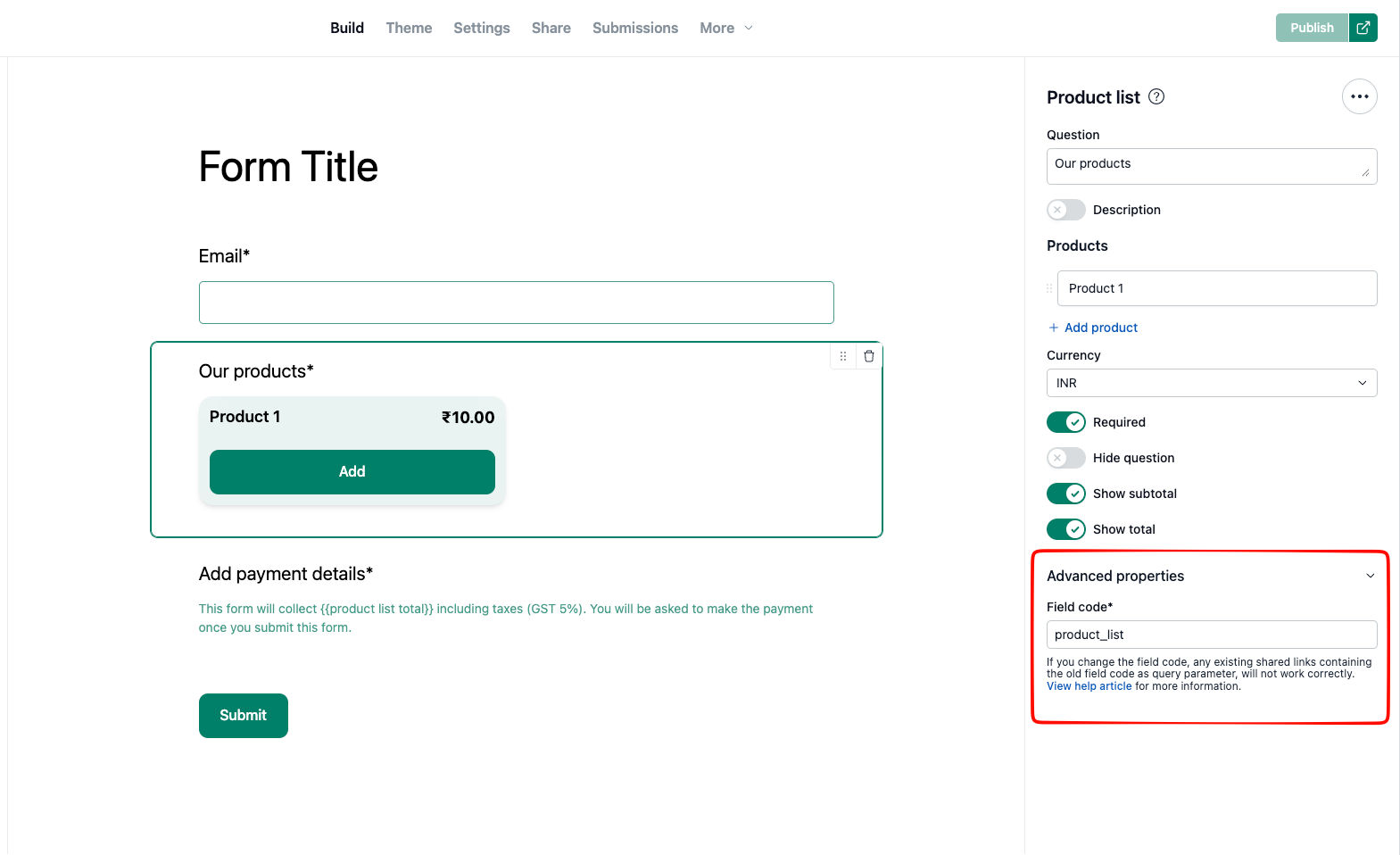
Every Product list field has a unique Field code. This is the key you use in the URL parameters. To find it:
Open your form in the Build tab.
Click the Product list element to open its properties on the right.
Scroll down and expand the Advanced properties section.
Copy the value shown in the Field code input.
Basic URL parameter format
To pre-select one or more products, add a selected_products parameter to the form URL. The value is a comma-separated list of product names, written exactly as they appear in the form:
https://example.neetoform.com/[form-id]?[field-code].selected_products=[Product name 1],[Product name 2]Setting the quantity
To set how many units of a product are pre-filled, add a .quantity parameter for that product:
[field-code].[Product name].quantity=[number]https://example.neetoform.com/[form-id]?[field-code].selected_products=[Product name]&[field-code].[Product name].quantity=[number]Combining parameters
Combine all of the above in one link, separating parameters with &:
https://example.neetoform.com/[form-id]?[field-code].selected_products=[Product name 1],[Product name 2]&[field-code].[Product name 1].quantity=2&[field-code].[Product name 1].[Option name]=[Choice]Names must match exactly, including capitalization. Anything that doesn't
match is ignored.
Commas separate products, so a product name containing a comma can't be
pre-selected - rename it to remove the comma.
Works even when the field is hidden or required.
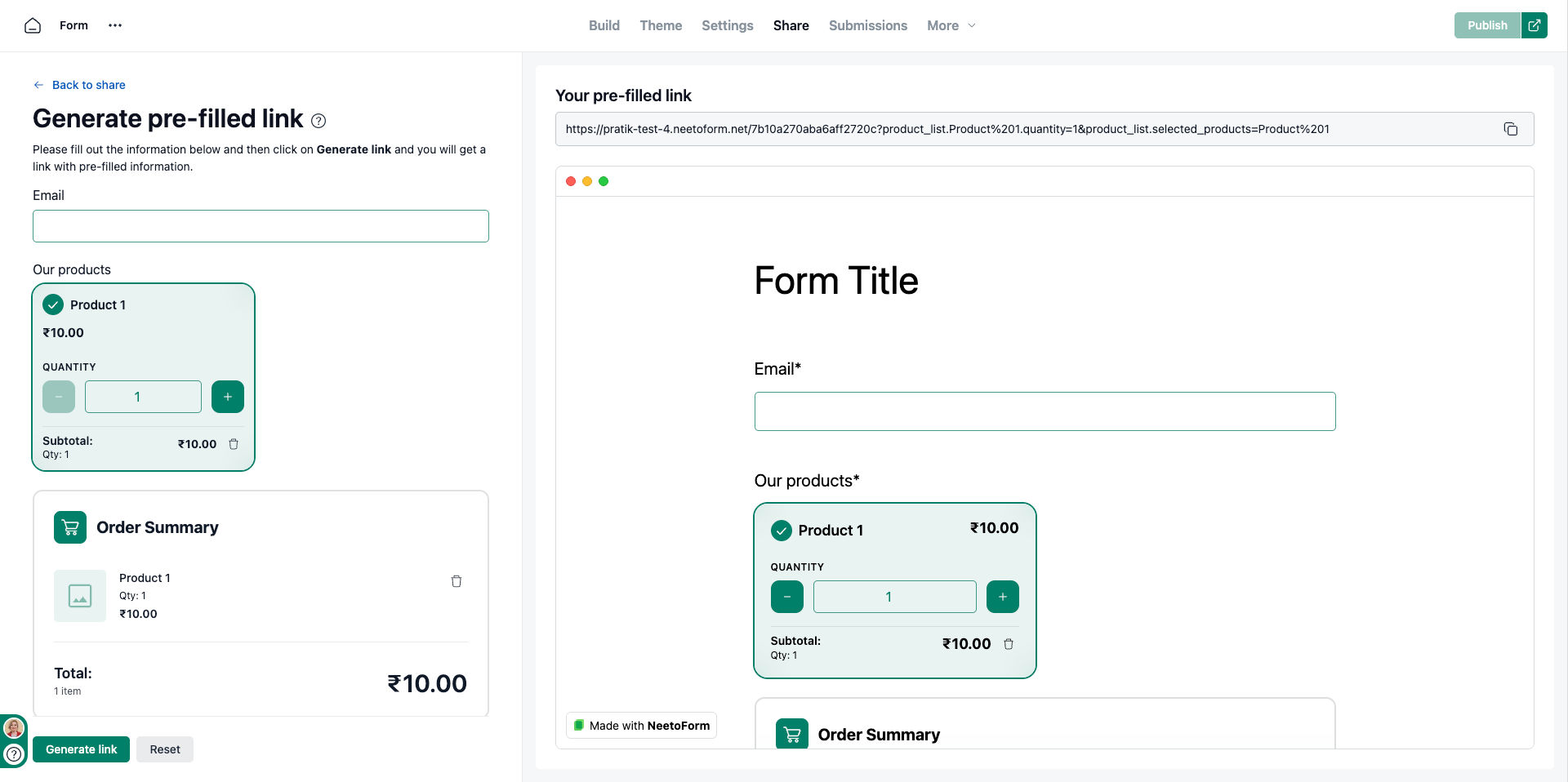
Instead of building links by hand, use the Pre-filled link
> generator in the Share tab to generate the URL automatically.